
How to Validate Digital Signature in e-Aadhaar
Disclaimer: This article is for general information/education and is not investment advice. The information is shared in good faith and for general informational purposes only. Ujjivan SFB does not make any representations or warranties regarding the accuracy, completeness, or reliability of the content.
April 27, 2026

A valid digital signature protects your e-Aadhaar from potential scams. It is important to validate your digital signature in e-Aadhaar to avoid unpleasant surprises. In this blog, we have decoded how to validate digital signature in e-Aadhaar.








Why Do You Need to Validate It?
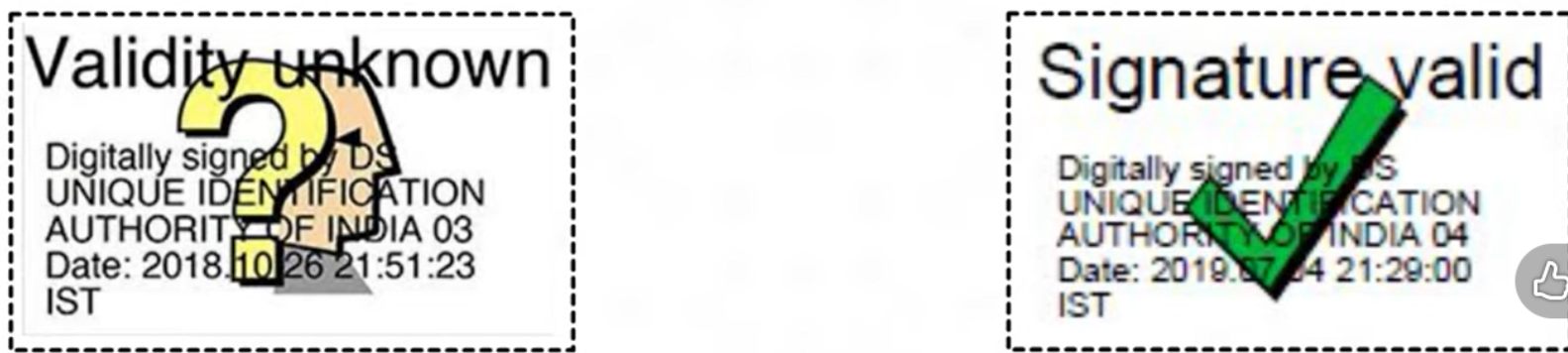
Sometimes, when you open the eAadhaar PDF in a PDF reader, the signature area may show a question mark or a message like “Validity unknown.” That does not mean there is an issue with your Aadhaar. It usually means the digital signature has not yet been trusted or validated on that system. UIDAI itself provides an official tutorial on YouTube specifically for validating the digital signature on eAadhaar.
How to Check Whether The Signature is Already Valid
Open your eAadhaar PDF in Adobe Reader on a desktop or laptop and look at the signature box.
Step-By-Step Process ro Validate The Signature
Step 1: Open the eAadhaar PDF in Adobe Reader
Start by opening the downloaded file on a desktop. This process works best in the desktop version of Adobe Reader, because that is where the signature tools are clearly available.
Step 2: Check whether the signature is already valid
Look at the digital signature section in the PDF, which you can find on the left leaf/side of the Aadhaar card. If it shows “Signature valid,” stop there. If it shows a question mark or “Validity unknown,” continue with the next steps. This is important because not every eAadhaar needs manual validation on every system.
Step 3: Right-click the question mark or signature box
This opens the signature options menu. The purpose of this step is to access the signature details and certificate settings linked to the PDF signature.
Step 4: Click on “Show Signature Properties”
This opens the signature details window. Here, you can see the current status of the signature and move to the signer certificate.
Step 5: Click “Show Signer’s Certificate”
This opens the certificate used to sign the eAadhaar PDF. The next steps are about trusting that certificate on your system so Adobe PDF Reader can validate it properly.
Step 6: Open the “Trust” tab and add the certificate to trusted certificates
Go to the Trust tab, click “Add to Trusted Certificates,” and confirm the security prompt. This tells Adobe PDF Reader to trust the certificate used for the UIDAI digital signature.
Step 7: Return and click “Validate Signature”
Once the trust settings are saved, go back to the Signature Properties window and click “Validate Signature.” Adobe PDF Reader will now recheck the signature using the updated trust settings.
Step 8: Confirm that the status changes to “Signature valid”
If the process is completed correctly, the earlier question mark should disappear and the status should show “Signature valid.”
Final Thoughts
Validating the digital signature in eAadhaar is mainly about making sure the UIDAI signature is properly recognised by your PDF reader. It helps remove the unknown-signature warning and makes the document easier to use wherever signature visibility matters. Since UIDAI already treats eAadhaar as a digitally signed and legally valid Aadhaar copy, this step is mainly about proper software recognition and smoother document use.
Disclaimer:
The contents herein are only for informational purposes and generic in nature. The content does not amount to an offer, invitation or solicitation of any kind to buy or sell, and are not intended to create any legal rights or obligations. This information is subject to updation, completion, amendment and verification without notice. The contents herein are also subject to other product-specific terms and conditions, as well as any applicable third-party terms and conditions, for which Ujjivan Small Finance Bank assumes no responsibility or liability. Nothing contained herein is intended to constitute financial, investment, legal, tax, or any other professional advice or opinion. Please obtain professional advice before making investment or any other decisions. Any investment decisions that may be made by the you shall be at your own sole discretion, independent analysis and evaluation of the risks involved. The use of any information set out in this document is entirely at the user’s own risk. Ujjivan Small Finance Bank Limited makes no representation or warranty, express or implied, as to the accuracy and completeness for any information herein. The Bank disclaims any and all liability for any loss or damage (direct, indirect, consequential, or otherwise) incurred by you due to use of or due to investment, product application decisions made by you on the basis of the contents herein. While the information is prepared in good faith from sources deemed reliable (including public sources), the Bank disclaims any liability with respect to accuracy of information or any error or omission or any loss or damage incurred by anyone in reliance on the contents herein, in any manner whatsoever. To know more about Ujjivan Small Finance Bank Products Visit: "https://www.ujjivansfb.bank.in" All intellectual property rights, including copyrights, trademarks, and other proprietary rights, pertaining to the content and materials displayed herein, belong to Ujjivan Small Finance Bank Limited or its licensors. Unauthorised use or misuse of any intellectual property, or other content displayed herein is strictly prohibited and the same is not intended for distribution to, or use by, any person in any jurisdiction where such distribution or use would (by reason of that person’s nationality, residence or otherwise) be contrary to law or registration or would subject Ujjivan Small Finance Bank Limited or its affiliates to any licensing or registration requirements.